# Webmail (English)
# Change the webmail language
[Our webmail ](https://www.indirizzofacile.it/)supports many languages.
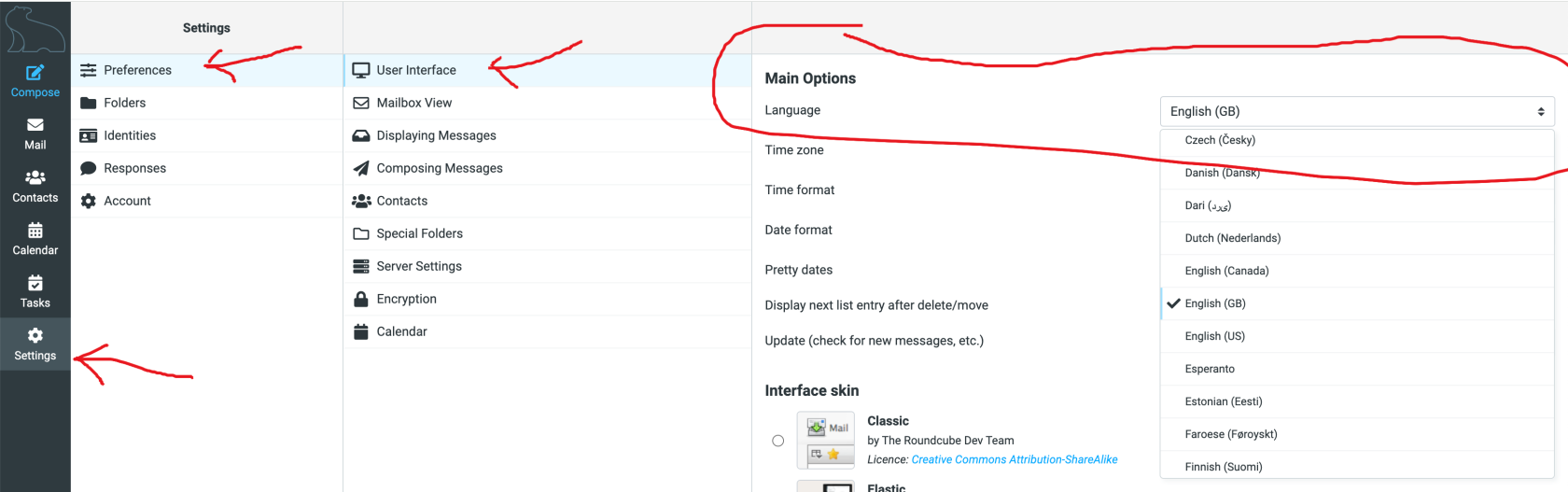
To change the language settings from Italian (default) to other languages, click on the ‘**Settings**’ icon at the bottom left.
Then click on ‘**Preferences**’, then on ‘**User Interface**’: on the page that opens, under ‘**Main Options**’ select your preferred language. Then press the ‘**Save**’ button, at the bottom.
[](https://help.whiteready.com/uploads/images/gallery/2024-10/language.png)
# Change your mailbox password
When a new mailbox is created (by the domain administrator) a password is also assigned.
This password can be changed by the user himself by going through Webmail, using a simple procedure.
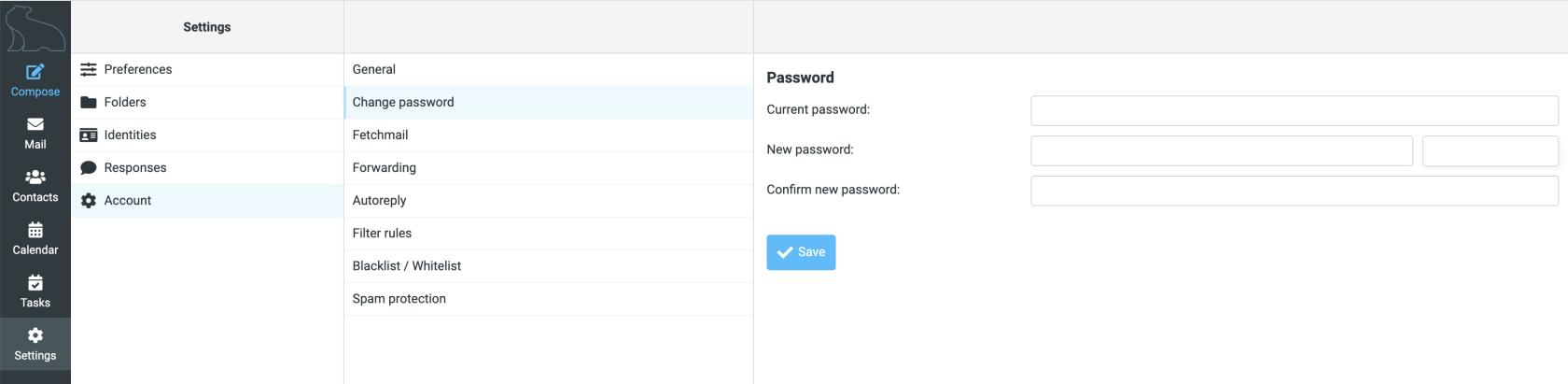
To change and use a new password, simply click on "**Settings**", then on "**Account**", on "**Change password**": enter the old password in the first field, then enter the new password twice (the second time for confirmation) and finally click "**Save**".
[](https://help.whiteready.com/uploads/images/gallery/2025-03/english-pwd.png)
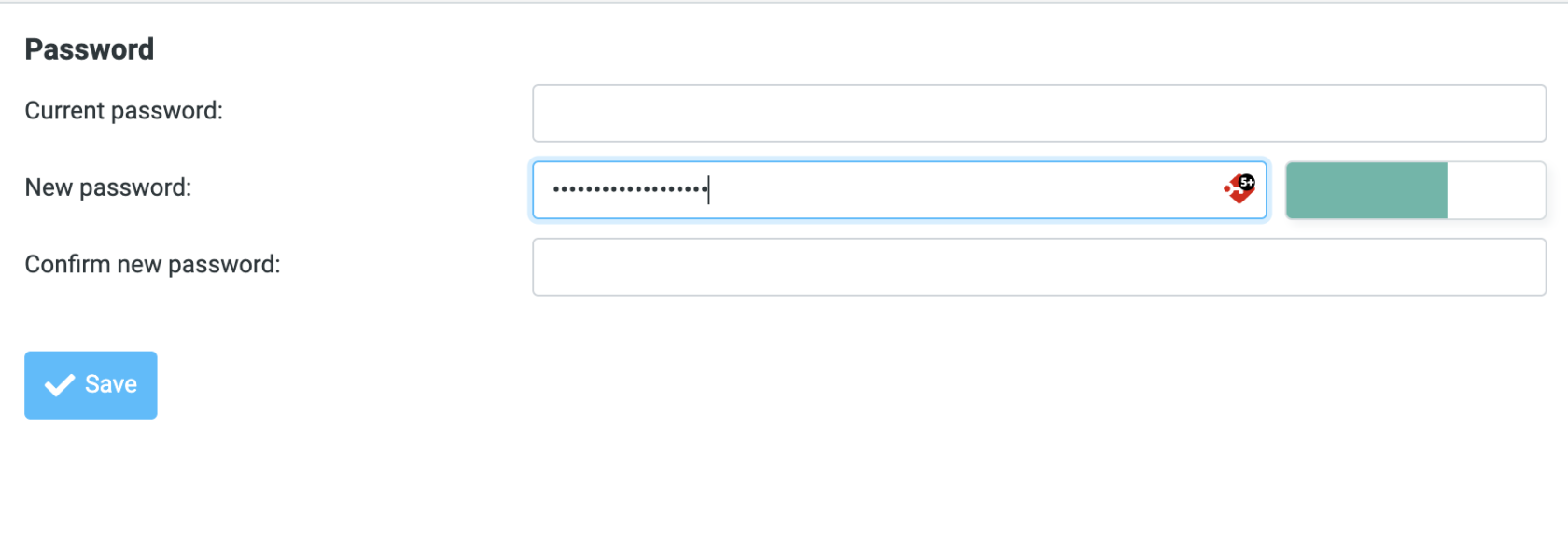
As you type your new password, the area on the right will turn colored: the color indicates the level of complexity and reliability of the password you are typing.
[](https://help.whiteready.com/uploads/images/gallery/2025-03/english-pwd2.png)
It is essential that the color turns **green**.
After saving, a message will appear briefly: if everything went well, the message is in green and says "**Password saved**", if something went wrong the message will be in **red**.